
Blox Fruits best settings matter because sharper visuals are less valuable than steady frame rates, clean input, and the ability to execute boss attacks without accidental movement. Use this guide to tune PC and mobile, then pair those changes with a smooth story route.
Blox Fruits Best Settings Overview
Start with three targets: a stable frame rate, minimal input delay, and a control layout that keeps important skills visible. A device may render the same island differently, so the best setup is the one that remains responsive during movement, aiming, and crowded boss encounters.
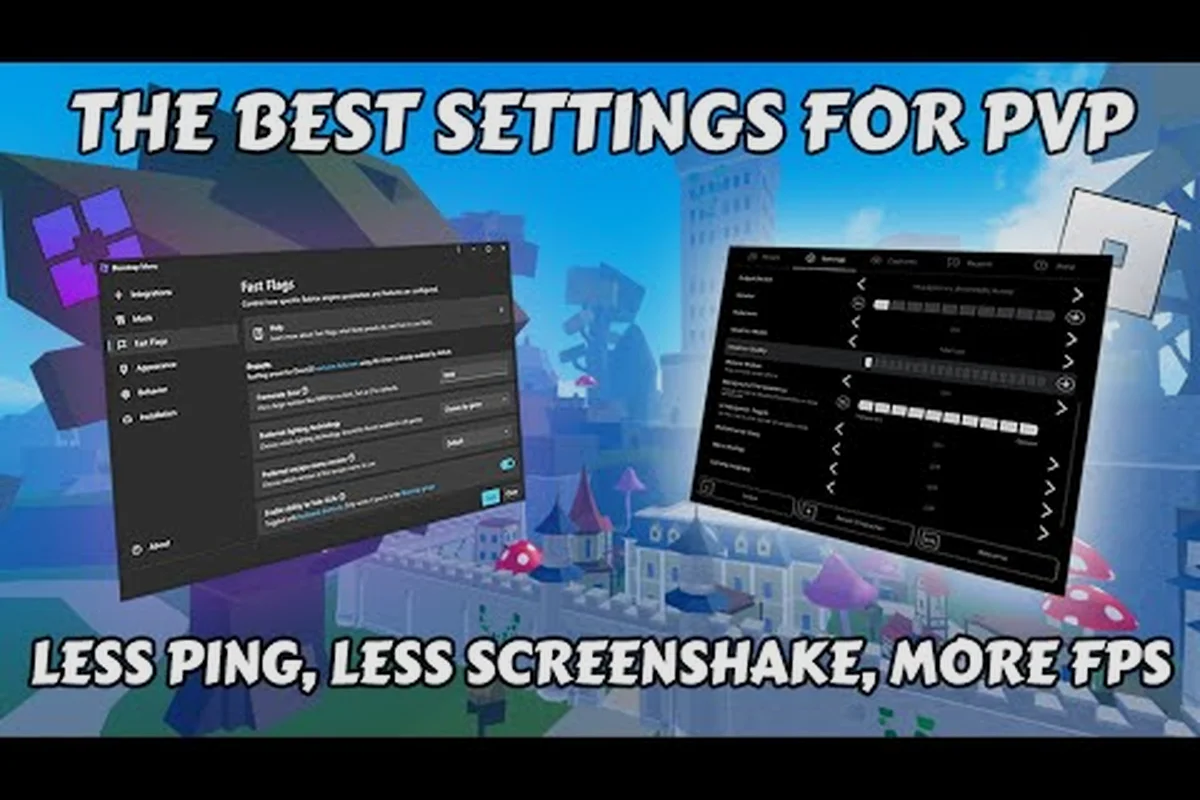
The visual portion of Blox Fruits can be adjusted inside the game, while Roblox provides broader display and performance options. A useful starting point is the performance-focused configuration demonstrated in this community settings video, which emphasizes graphics quality, mobile skill-button placement, and reducing effects during intense encounters.
| Device type | Graphics level | Shadow quality | Main benefit | Main tradeoff |
|---|---|---|---|---|
| Older mobile | Low | Off | Fewer visual effects and steadier combat | Less dramatic lighting |
| Modern mobile | Medium | Off or low | Better visuals without heavy effects | May still drop during large fights |
| Average PC | Medium or high | Medium | Clear visuals and reliable performance | Higher GPU load |
| High-end PC | High | High | Best image quality | Benefits only if the system is stable |
The Frame Rate target is more important than the Resolution choice. When the counter regularly falls below 30 frames per second, lower shadows, reflections, and other visual effects before changing the resolution. When the frame rate remains steady but the image feels soft, increasing resolution may be worthwhile.
A practical Blox Fruits full walkthrough begins with this short setup test. Enter a safe area, move continuously for 30 seconds, perform a few attacks, and open a skill wheel. Then repeat those actions in a crowded area such as a sea event. A setting that feels acceptable while stationary may still cause missed inputs during the fight.
Blox Fruits PC Graphics and Performance Settings
PC players should balance in-game quality with Roblox display options. The updated PvP settings video demonstrates why “maximum” is not automatically the best choice: responsive input and repeatable frame pacing matter more than decorative effects.
In-Game Graphics Choices
Open the game menu and inspect the graphics panel. Increase quality only when the frame-rate counter remains stable while moving. The right setting depends on your graphics card, resolution, and display refresh rate, so test one change at a time rather than changing the entire menu.
| Test order | Change | What to observe | Keep or revert |
|---|---|---|---|
| 1 | Set shadows to low | Frame stability and ability readability | Revert if the scene becomes too flat |
| 2 | Reduce visual effects | Input delay during attacks | Keep if actions feel immediate |
| 3 | Adjust resolution | Sharpness and sustained frame rate | Revert if motion becomes inconsistent |
| 4 | Raise graphics gradually | Final balance between clarity and speed | Stop before the frame rate falls |
The Shadow Toggle should normally be low on mid-range PCs. Shadows add visual depth, but they can become expensive when several characters and effects appear in one area. The Visual Effects setting has a similar rule: reduce it before sacrificing controls, because an attack that registers late can cost more progress than a less polished scene.
Roblox Display Options
Outside the game, use the Roblox graphics menu to check the resolution scale, fullscreen mode, and related display controls. Your display refresh rate should also match the rate the game can sustain. A high refresh number printed on the monitor does not guarantee 120 frames per second in Blox Fruits.
-
Resolution Scale: Begin at the automatic or native setting, then reduce it only if movement is unstable.
-
Fullscreen: Compare fullscreen with the mode you normally use; windowed mode can be useful for checking performance on some PCs.
-
VSync: Test both options during movement because input feel matters more than a theoretically smoother counter.
-
Frame Cap: Avoid chasing an unrealistic cap that your system cannot maintain.
-
Background Apps: Close demanding applications before entering a boss arena.
If your system still struggles, lower the in-game resolution before removing key visual information. The Blox Fruits best settings video follows the same practical idea: build a configuration that remains responsive instead of selecting the highest option by default.
Blox Fruits Mobile Graphics and Control Layout
Mobile players have less room for error because thermal throttling can reduce performance during long sessions. Begin at a moderate graphics level, keep the screen awake, and use a device that is not charging under heavy heat. Lowering effects helps when the device has already settled into a stable frame rate.
Mobile Graphics Presets
| Device condition | Recommended graphics | Effects | Expected experience |
|---|---|---|---|
| Older or budget device | Low | Off | Stable movement and fewer stutters |
| Mid-range device | Medium | Low | Good balance for quests and farming |
| Recent flagship device | High | Medium | Better visuals if sustained performance holds |
| During long boss sessions | Medium | Low | Reduced heat and more consistent input |
Do not evaluate performance only at the start of a session. Phones can slow after several minutes of continuous play, especially in crowded areas. A Thermal Buffer of 10 to 15 minutes can reveal the real behavior of the device before you enter a raid or boss attempt.
Keeping Skills Visible
Place the joystick and action buttons where your thumbs naturally rest, but keep the Skill Button Cluster away from the screen edge. If a skill overlaps the movement control, adjust its size or position until both can be operated without changing grip. A button that is easy to hit while standing still can still be troublesome during a chase.
-
Keep the primary attack button in the easiest reachable position.
-
Move secondary skills away from frequent sprint taps.
-
Avoid placing essential buttons beneath system gesture areas.
-
Use the largest practical button size without covering enemies.
-
Recheck the layout after changing device orientation.
Stable controls make progression smoother during Blox Fruits quest objectives: you can return to an NPC quest giver, travel between islands, or activate a Blox Fruit ability without an accidental camera turn interrupting the action. For example, keep the Skill Button Cluster centered enough to reach while moving, since misfires during a Sea Event pursuit can cost position and health. If the skill controls occupy too much screen space, reduce their size before sacrificing the primary attack button’s reachability.
Blox Fruits Best Settings by Play Style
Different activities reward different combinations of clarity, speed, and control visibility. For example, boss farming benefits from larger attack buttons and a closer camera so melee timing and target tracking remain consistent, while quest progression works better with medium graphics and readable navigation. In Blox Fruits, reducing effects can improve visibility during raids, but overly low settings may make mobs and drops harder to identify; the best setup is therefore the one that balances performance with the visibility needed for the current encounter.
| Play style | Graphics | Skill layout | Camera behavior | Priority |
|---|---|---|---|---|
| Story and quest progression | Medium | Standard | Medium distance | Readability |
| Boss farming | Medium with low effects | Larger attack buttons | Follow boss closely | Input consistency |
| Leveling and grinding | Low to medium | Comfortable movement area | Slightly farther | Sustained frame rate |
| PvP | Low effects | Compact, accessible cluster | Tight and responsive | Low input delay |
| Raids | Medium | Clearly separated abilities | Stable during effects | Crowd visibility |
Questing and Exploration
Use Medium Quality when you want to see quest markers, NPCs, and enemies clearly. Complete the current island’s NPC chain before advancing, because each island presents objectives tuned to a particular level band. A Blox Fruits npc guide becomes easier to follow when your controls remain stable, since misdirected movement can send you past an NPC or make an interaction seem unresponsive. The leveling guide can help you match islands with appropriate level targets. Before moving on, verify that the required NPCs were activated, every available quest was completed, and important drops were collected. These checks prevent avoidable backtracking.
Boss Farming
For bosses, remove unnecessary visual clutter and keep attack inputs simple. Attack Delay matters more here than decorative quality because missed attack windows repeatedly increase the length of a run. Keep the Camera Distance close enough to track teleporting targets, but leave enough of the arena visible to read incoming hazards. Players who want more efficient routes can consult the repeatable quest and farming guide. Combine its farm targets with a medium or low-effect graphics profile, then test the setup against the boss that causes the most stuttering.
PvP and Raids
In PvP, small visual distractions and delayed movement make it harder to react. In raids, effects are often heavier, so reducing them can prevent a temporary performance collapse. The same Control Spacing principle applies to both: keep movement, primary attack, and dodge tools separated enough to use without accidental activation. A Blox Fruits full walkthrough should eventually include raid preparation, but settings do not replace a proper build. Players who are still learning Haki can use the Haki progression guide while applying a conservative graphics profile for crowded encounters.
Blox Fruits Sensitivity and Input Tuning
Sensitivity is personal, but it should produce predictable movement rather than the fastest possible turning speed. For example, a setting that snaps the camera 180 degrees may feel responsive during a Sea 2 NPC quest, yet it can make boss targeting and corner navigation harder because the character repeatedly overshoots the intended angle. Start with a moderate sensitivity, use the same value for horizontal and vertical movement, and adjust it only after testing quest tracking, boss positioning, and camera control in a safe area.
Mouse and Keyboard on PC
Begin with the sensitivity that feels natural during ordinary movement, then lower it by small increments if the camera swings too quickly around NPCs or during PvP tracking. Use a short target test rather than general comfort: face a stationary enemy, turn through a full 180-degree arc, and check whether the reticle overshoots or arrives late. This helps separate sensitivity problems from delayed ability inputs, which may instead require reducing effects and retesting performance.
| Symptom | Likely cause | Adjustment |
|---|---|---|
| Camera overshoots NPCs | Mouse sensitivity too high | Lower sensitivity slightly |
| Character turns slowly in PvP | Sensitivity too low | Increase modestly |
| Ability inputs feel delayed | Performance interruption | Reduce effects and test again |
| Character drifts while aiming | Camera control conflict | Lower sensitivity and use gradual turns |
Camera Sensitivity should be adjusted in small increments. The Mastery Cap slider controls how much mastery improves your maximum level, not camera speed, so leave that setting alone unless your objective is mastery training. The same distinction applies to graphics settings: adjust the actual performance control rather than an unrelated progression option.
Touch Controls on Mobile
Mobile sensitivity is tied to layout, touch sampling, and device responsiveness. If your character turns sharply from small thumb movements, reduce the control sensitivity or enlarge the dead zone. If turns feel disconnected, do the opposite. The best value is the one that lets you make deliberate corrections.
-
Tap the quest marker before changing sensitivity so you know which direction the camera moved.
-
Test movement on a large island rather than in a cramped starter area.
-
Compare skill activation speed, not just walking speed.
-
Recalibrate after replacing the control layout.
-
Restart the game if movement and visuals disagree after a settings change.
A Blox Fruits story guide should treat quest order as closely tied to island progression, so completing an NPC encounter before advancing to the next area can prevent route confusion. Stable camera and touch behavior matters most when an NPC stands beside a wall or a path splits around a hazard: a slightly delayed camera turn can send your character toward the wrong route, while an oversensitive control layout may make small corrections overshoot. For example, when approaching a quest-giver near a cliff or narrow corridor, keep the camera centered long enough to confirm the NPC marker, then use short movement inputs instead of large thumb swipes. This reduces missed interactions without changing the order of story quests.
Blox Fruits Quest and NPC Settings Checklist
Settings support progression, but quest completion still requires a reliable route. Use this checklist after configuring the game, then apply it whenever you move to a new island or begin a new story band: verify that quest-giver NPCs show the required marker, complete the current story quest before advancing, and check the quest log for the next objective. For example, in the East Sea storyline, finish the Bandit and Gorilla quests in order rather than skipping directly to the boss, because later NPCs may remain locked behind earlier story progress. After changing the Blox Fruits best settings—especially graphics, FPS target, or distance settings—revisit the relevant NPC and confirm the quest prompt still appears, since a route error can look like a settings problem.
Before Leaving an Island
-
Activate every available NPC quest.
-
Complete the required storyline in order.
-
Collect quest rewards before traveling.
-
Check whether a defeated boss dropped a mission item.
-
Return to quest givers that offer repeatable rewards.
-
Save enough Beli and materials for the next progression step.
| Checkpoint | What to verify | Best setting concern |
|---|---|---|
| NPC acceptance | Quest marker and dialogue register | Touch or mouse accuracy |
| Story completion | Dialogue advances without stalling | Frame stability |
| Boss objective | Required enemy or item is secured | Effect reduction if needed |
| Island transition | Boat route and destination are correct | Minimap and navigation clarity |
| Repeat quest | Rewards are collected before leaving | Fast interaction |
The third-sea leveling guide is useful when your route eventually reaches the level 1500 area. Keep the same stable setup rather than assuming later content requires maximum settings; later islands usually place greater demand on sustained performance because fights and crowds become more involved.
During Long Play Sessions
Review performance every 20 to 30 minutes on mobile and during long PC sessions, using the same crowded test route each time so results are comparable. Watch for declining frame rate, delayed skill activation, camera stuttering, or rubber-banding around NPCs and enemies. If attacks stop registering, lower graphics immediately rather than repeatedly casting; sustained input delay can disrupt combos, boss timing, and quest progression.
A Blox Fruits full walkthrough becomes more practical when it accounts for maintenance between zones, because a stable setup should remain reliable as you move from starter islands into Sea 1, Sea 2, and later areas with heavier NPC and enemy encounters. Use the same test route for each session, note whether frame time, skill activation, and quest progress remain consistent, and treat any repeatable slowdown as a configuration signal rather than simply restarting the game.
-
Configure graphics and controls before entering a crowded area.
-
Test movement and one primary attack.
-
Complete the current NPC quest chain.
-
Compare performance before and after a boss fight.
-
Adjust only the setting responsible for the slowdown.
-
Record the stable configuration for future sessions.
Blox Fruits Performance Troubleshooting
Most performance problems come from one of three places: the graphics profile, background system load, or a session-related slowdown. Diagnose them in that order. A reset can solve temporary issues, but repeatedly lowering every setting may hide the real cause.
| Problem | Mobile check | PC check | Best response |
|---|---|---|---|
| Frame-rate drops | Close background apps | Close demanding programs | Reduce visual effects |
| Delayed attacks | Check touch layout | Check mouse input | Test performance with effects reduced |
| Stuttering in crowds | Restart after heat buildup | Lower graphics gradually | Use a conservative preset |
| Blurry image | Increase resolution if stable | Adjust resolution scale | Improve clarity only if stable |
| Controls reset | Recalibrate layout | Confirm layout persistence | Reconfigure and retest |
Fast Flags and Unverified Options
Community videos may present experimental client options or “fast flags” that sound attractive. Treat those as version-dependent rather than guaranteed improvements. The supplied community references specifically include an updated PvP settings video, but they do not establish that every experimental flag is safe or stable for every device.
-
Back up your current configuration before testing unusual changes.
-
Change one variable at a time.
-
Compare the same route before and after the change.
-
Discontinue anything that causes crashes, delayed input, or unstable frame pacing.
-
Prefer built-in controls because they are easier to verify and restore.
A Five-Minute Performance Audit
Use the same settings sequence each time you suspect a problem, resetting only the option you are testing before the next check. This creates a fair comparison and prevents you from blaming a setting that was never responsible. For example, if input delay appears after enabling Auto-Target, switch Auto-Target off while keeping your graphics preset unchanged; if attacks register normally, restore it and test one variable at a time, since lower graphics settings can also affect frame timing, input response, and menu responsiveness in Blox Fruits.
| Time | Action | Success signal |
|---|---|---|
| Minute 1 | Restart and enter a safe area | Menus open normally |
| Minute 2 | Run through the starter area | Movement stays smooth |
| Minute 3 | Perform repeated attacks | All inputs register |
| Minute 4 | Test a busy quest area | Frame rate remains acceptable |
| Minute 5 | Compare current settings | One clear stable preset is documented |
The Stable Preset should become your default for story progression. For demanding fights, create a second profile with lower effects and larger combat controls. Switching between two tested configurations is more manageable than continually changing several individual values during a boss attempt.
Frequently Asked Questions
What are the best graphics settings for Blox Fruits on mobile?
Medium quality with low or disabled effects is the safest starting point for most phones. Lower the setting further if your frame rate drops during boss fights, and raise it only when movement and attacks remain stable. Phones vary considerably, so test in a crowded area rather than judging performance near the starting island.
Should I use maximum graphics for better PvP?
Usually not. PvP benefits more from stable frame rate, low input delay, and accurate camera control than from maximum visual quality. Lower effects can make enemies easier to read and keep your movement responsive. If maximum graphics remains perfectly stable on your device, test it, but retain a lower-effect preset for crowded encounters.
How do I stop my mobile skill buttons from overlapping?
Open the control layout and move the skill cluster away from the joystick, screen edge, and system gesture area. Enlarge the primary attack button if it is difficult to press without changing grip. After editing, test movement and attacks together because a layout that works while stationary may still cause accidental inputs during combat.
Are fast flags worth using in Blox Fruits?
They are not guaranteed improvements because client behavior and compatibility can change between versions. Community videos can help identify options to investigate, but the supplied references do not verify every experimental flag as safe. Test one change at a time, keep a backup layout, and revert anything that causes crashes or delayed input.
Do the best settings change while following the story?
The core configuration can remain constant, while control layout and graphics may need temporary adjustments. For example, reduce effects during a crowded boss encounter, then restore them for quieter exploration. A Blox Fruits story guide should help with quest order, but it cannot prevent lag caused by a device that is overheating or overloaded.
The best Blox Fruits best settings configuration is the one that survives real play: steady movement, immediate attacks, readable enemies, and no crashes. Start with medium graphics and low effects, customize the controls for your device, test in a busy area, and keep a proven fallback profile ready for bosses and raids.